 Here are the steps on how to do clipping path using pen tool:
 (Please click the image to enlarge)
Step 1:
- Open or drag an image from your file to your photoshop screen.
- Select the "pen tool" icon found on the left side of your screen.
- Choose the icons that was encircled above this image. And simply go to the "path" bar located on the right side of your screen.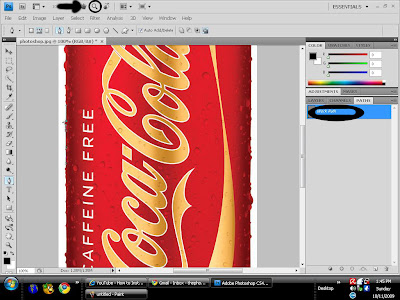
Step 2:

Step 2:
- To view the specific edges or area to be path use the "Zoom" tool icon that is located on the upper part of the screen or simply press "Ctrl++" on your keyboard. And path the area by pressing 'left click" on your mouse.
- If you want to move the image to side by side or up and down. Use the "Hand" tool icon located on the upper part of your screen near the zoom tool icon or simply press the spacebar on hold and move it by using your mouse. And "double" click the word "Work path" on the path bar and press "enter" or "OK". To make it "Path 1".

Step 3:
- While clipping the images, you should connect the line or dots from the clipped edges to where you started. You can see a circle beside the pen tool icon. And now your done. Bring the image back to its original size.
 - This is just a tutorial on how you clip the image using pen tool. You can start from a very simple image, just to practice. When you already know how to clip, you can do a lot of things for photo editing. Watch out for a lot of tutorials to be posted. :)


